Windows 0.2.1
64-bit Windows with WebView2. Install XZ Mods, then choose your USB in the app. Stem generation, batches, USB tools and game setup are all included.
Windows installation help · Windows checksums · Matching source
MORE FROM YOUR XDJ-XZ
Mute vocals, adjust drums and control stems from the touchscreen or your performance pads. Make the screen your own with 24 themes.
Generate stems in the app on your computer, or use OverCue Desktop, then play them on your XZ. Start the XZ with the USB in and XZ Mods runs. Start without it and nothing has changed.
XDJ-XZ firmware 1.26 · FAT32 USB · Windows or Mac for setup
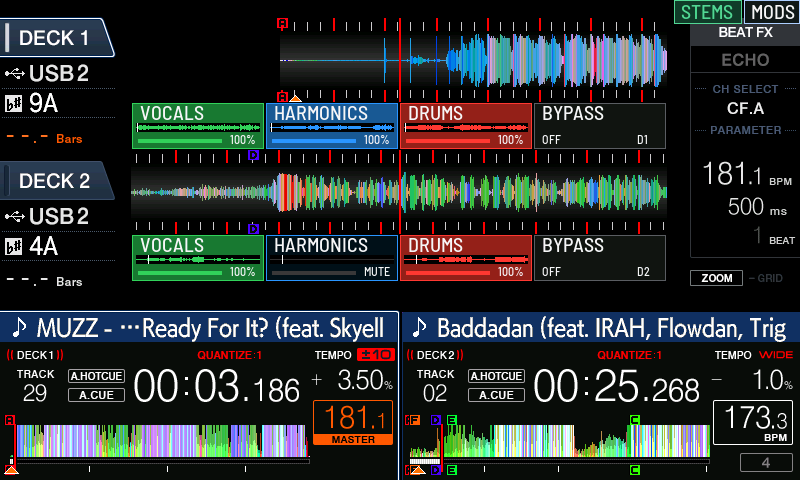
ON THE XDJ-XZ Vocals, Harmonics, Drums + Bypass on both decks.
DOWNLOAD XZ MODS 0.2.1
Prepare your XDJ-XZ USB and stems on Windows or Mac. Firmware 1.26 and a FAT32 loader USB are required.
64-bit Windows with WebView2. Install XZ Mods, then choose your USB in the app. Stem generation, batches, USB tools and game setup are all included.
Windows installation help · Windows checksums · Matching source
macOS 14 or later. Open the DMG and drag XZ Mods into Applications. No separate Python installation is needed. Choose the download that matches your chip.
This Mac preview is not notarized by Apple. macOS may ask you to approve its first launch.
Not sure which? Open Apple menu → About This Mac. A chip named Apple M1, M2, M3 or later means Apple Silicon. A processor named Intel means Intel.
Because this preview is not notarized by Apple, macOS may block its first launch.
XZ Mods 0.2.0 and earlier supported versions can update inside the app to 0.2.1, the hotfix for 0.2.0. Signed updates work on Windows and Mac.
Updating the desktop app does not change the loader already on your USB, so step 3 matters. New loaders you prepare get the 0.2.1 changes. On an older version, download 0.2.1 above before updating your USB.
HOW IT WORKS
Set up your USB and stems on a computer, then control them on the XZ.
Open XZ Mods on Windows or Mac, click Choose USB and prepare loader, and select your FAT32 USB drive. The app gets and checks the files it needs, then adds the loader to your stick.
Use your music USB or a separate loader stick. Preparing a new loader does not format the drive or overwrite your music or an existing loader. To update one, use Back up and update loader.
Want the optional games? During USB setup the app can also download, check and copy free game data for MODS → Extras → Games.
You can remove it once MODS appears on the screen. Keep the USB containing your music and stems connected while playing.
To play without XZ Mods, power off and start without the USB that holds the loader.
The app adds autoexec.bin to your stick.
Start the XZ with the USB in and XZ Mods runs.
Start without it and nothing has changed.
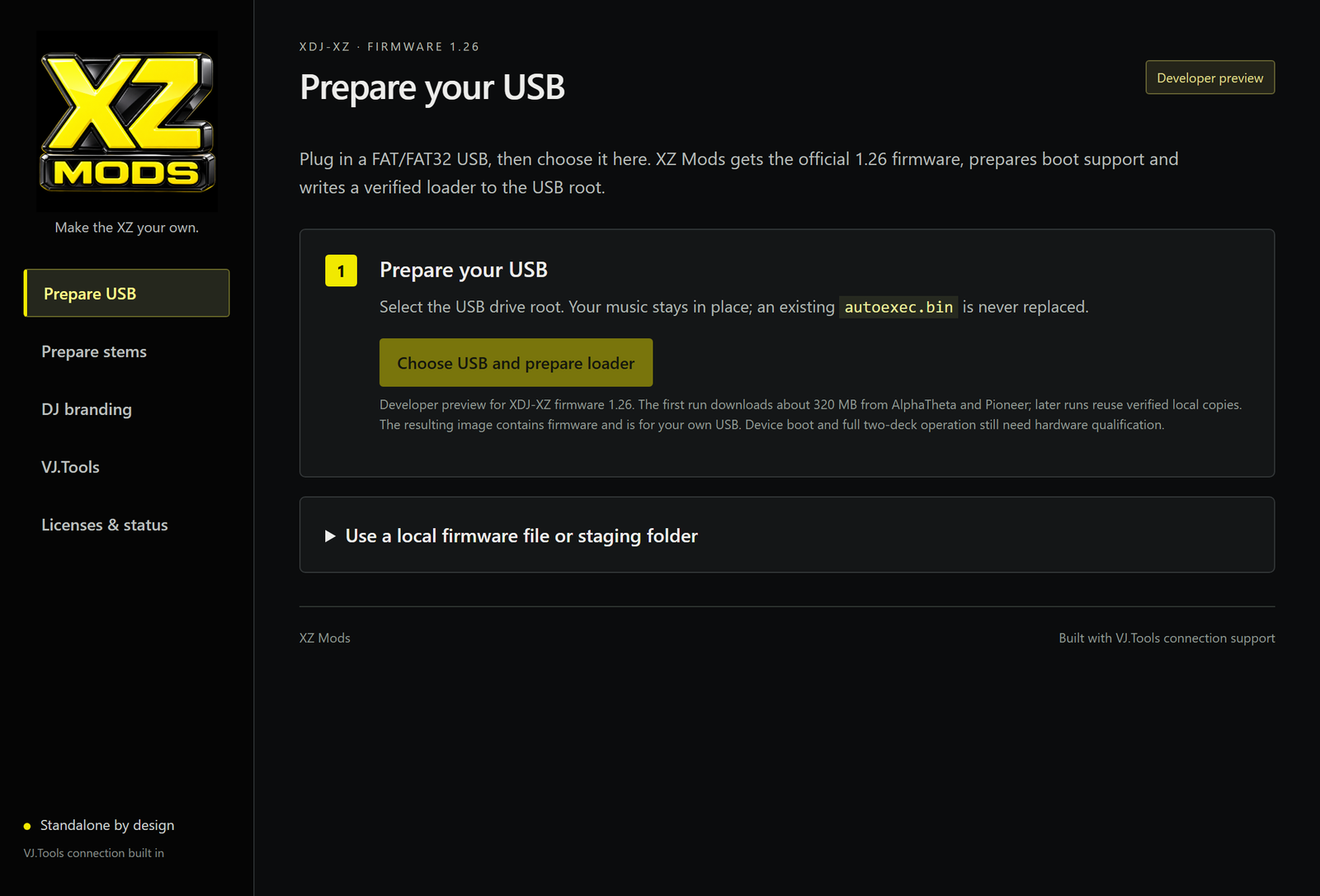
Select tracks from your exported library in XZ Mods and generate stems with Open-Unmix HQ, the default, or choose Vocal focus as an alternative. Already have separated instrument stems? Import them and the app groups them into Vocals, Harmonics and Drums.
Stems are saved beside the matching track on your music USB. Your music, stems and loader can all share one FAT32 stick. Your original files and exported library stay unchanged.
Prefer OverCue Desktop? XZ Mods plays the stems it prepares too.
Generation runs on a Windows PC or an Apple Silicon Mac, not on the XZ. Long tracks are processed through temporary files, so leave some free disk space.
ON YOUR MUSIC USB
autoexec.binXZ Mods loaderContents/your music · exported libraryPIONEER/exported library databaseCDJMODS/written by XZ Mods or OverCue Desktop
index.jsonwhich tracks have stemsstems/…overcue-stems/4 bundlesInsert your USB, start the XZ and wait for MODS to appear. Choose the original track in the normal browser and wait for its stems to load. Each deck gets Vocals, Harmonics, Drums and Bypass controls beneath its waveform.
Open MODS → Controls to assign the same four controls to physical buttons on each deck, such as the hot cue pads. Bank A–D is the default. The pads light green for Vocals, blue for Harmonics, red for Drums and white for Bypass, and dim when a stem is muted. The other bank keeps its normal hot cues.
1
2
3
4
5
HOT CUE PADS · BANK A–D
INCLUDED IN 0.2.1
Prepare stems on your computer, control them on the player, and make the screen your own. Read the 0.2.1 notes ↓
On your computer, before the set.
Open-Unmix HQ by default, or Vocal focus. Stems are written beside a track you already exported with your DJ software, ready for the XZ.
Reads lossless FLAC stems from current OverCue Desktop as well as older bundles. Stems you generate or import are written as lossless FLAC and verified after writing.
Progress for each track, verified stems reused, cancel at any time. A failed track does not stop the batch, and you can retry only the failures.
Preparation now works through files on disk instead of holding the whole track in memory. Leave some free disk space for temporary files.
Import aligned instrument stems and group them into the Vocals, Harmonics and Drums the XZ controls.
Originals and your exported library are never changed. Check OverCue track verifies a track's stems before you play.
On the play screen, on both decks.
Vocals, Harmonics, Drums and Bypass under each waveform. Tap to mute, drag to set the level, STEMS to hide the rows without changing the audio.
Map the same four controls to physical buttons such as hot cue bank A–D. Green, blue, red and white LEDs, dimmed when muted. The other bank keeps its hot cues.
Four backward and forward pairs per page. Shift opens page 2, with 16, 32, 64 and 128 beats by default. Labels show beats and bars.
Two prepared views. Show low, mid and high frequency bands, or switch to Vocals, Drums and Harmonics stems. The original overview at the bottom and the live playhead stay. See testing notes
Choices that stay with your USB.
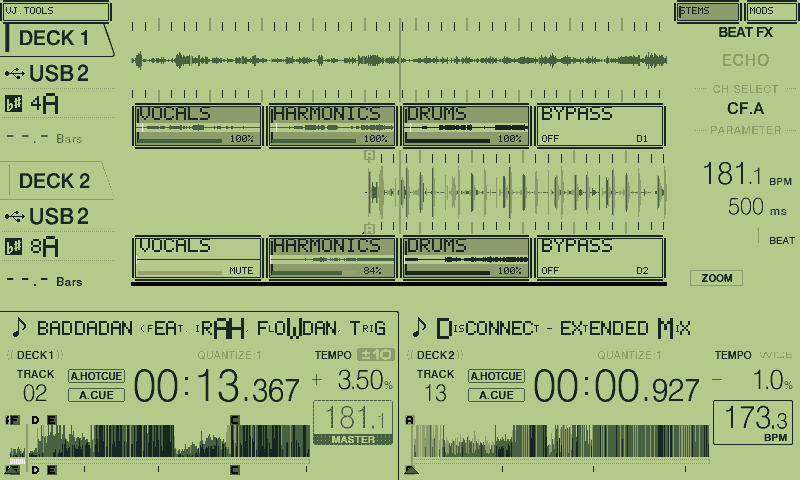
Retro Game Boy, Super Nintendo, Windows 95, Game Boy Color, Aqua and DMG screens, plus LCARS, Glass and more. Themes change the play screen, the MODS menu, titles, waveforms and cues.
Theme, pad, stem-row and Beat Jump choices are saved on a writable USB. Edit them from the desktop settings editor too.
The VJ.Tools connection stays available in the MODS menu, even when you are offline.
A game opens only when you select it in MODS → Extras → Games. The XZ always starts in the normal DJ view.
Pong and Breakout scored on the beat. Hit CUE on quarter notes for chains and shields, and land a Drop on the downbeat. Chill pacing, Fine, Smooth or Fast jog feel, and Tunnel, Grid or Orbit scenes. PLAY and track search keep working.
Ride the track's waveform. Dodge drum spikes, collect vocal gems and catch the harmonics slipstream. Steer with the jog wheel and hop with CUE.
USB setup can download Doom shareware, Chex Quest and Freedoom data, check each file with SHA-256 and confirm the copy. Pick your own WAD files too. Commercial Doom data is never downloaded; supply your own.
Windows or Mac, and one USB.
DMGs for Apple Silicon and Intel on macOS 14 or later, no Python needed. Stem generation runs on Apple Silicon. Choose your Mac download
Choose a FAT32 drive. The app gets and checks the files it needs and adds the loader without formatting the drive or touching your music.
Start the XZ with the USB in and XZ Mods runs. Start without it and nothing has changed.
Update an existing loader with a verified backup, restore it if needed, and check its integrity. Caches and staging folders sit in Advanced.
The app checks for updates at startup and installs signed releases on Windows and Mac. Then update your USB with one button.
MIT-licensed app and mod code. Nothing from the player's maker is part of the download.
DISPLAY STYLES
Choose from 24 themes in MODS → Appearance, including retro designs and light/dark variants. Change the look of the play screen, its text, waveforms, markers and dialogs. Your choice is saved on the USB.
WHAT HAS BEEN TESTED
XZ Mods is an experimental community project, tested on one XDJ-XZ. Here's what has been checked so far.
SPECS
| Player | XDJ-XZ on firmware 1.26. No other firmware version is supported. |
|---|---|
| Computer | 64-bit Windows with WebView2, or a Mac running macOS 14 or later with Apple Silicon or Intel. Choose your download. On Windows, download and run XZ.Mods_0.2.1_x64-setup.exe. A portable ZIP is also available. VJ.Tools and Python are not needed. |
| Existing USB | After updating the desktop app, open USB loader → Back up and update loader to update an existing loader on your USB. The app update alone does not change the USB. |
| USB | A FAT32 drive for your loader, music and stems. A separate loader-only stick also works. Keep your music USB connected while playing. |
| How it runs | Start the XZ with the USB in and XZ Mods runs. Start without it and nothing has changed. |
| Without XZ Mods | Start without the USB, or with a USB that has no autoexec.bin on it. Plug it in and restart to use XZ Mods again. |
| Stem generation | Built in on Windows and Apple Silicon Macs. Open-Unmix HQ by default, or Vocal focus. Runs on your computer before the set, beside a track already in your exported library. Needs free disk space for temporary files. Batches of up to 100 tracks. OverCue Desktop also works. |
| Stems | OverCue stem bundles, 96 kHz stereo. Reads lossless FLAC stems and older bundles. Writes FLAC stems and checks the source, every page and the full audio. |
| Controls | Vocals, Harmonics, Drums, Bypass per deck, on the play screen and assignable to physical buttons such as hot cue bank A–D (E–H optional, unverified). Two-page Beat Jump with configurable pairs. |
| Themes | 24 choices, including color palettes, retro designs and light/dark variants, chosen in MODS → Appearance and saved on a writable USB. |
| Games | Optional, in MODS → Extras → Games, and opened only when selected. USB setup can add free Doom shareware, Chex Quest and Freedoom data. Commercial Doom data must be supplied by you. |
| Not included | Nothing from the player's maker is part of the download. The app gets and checks the files it needs when you prepare a USB. |
| License | MIT for the app and mod code, with third-party notices retained. |
BEHIND XZ MODS
I built XZ Mods to get more from my own XDJ-XZ. It's part of VJ.Tools, my collection of tools for DJs and visual artists.
I'm also exploring ways to bring live visuals to the XZ's screen. The development capture here shows video from VJ.Tools on the player. See the testing notes for the current state of video playback and touch control.
VJ OpticMystic · opticmystic.live ↗
CHANGELOG · EVERY RECORDED REVISION
From playing prepared stems to making the screen your own: here’s what each revision added, why it matters, and what still needs testing.
CURRENT PUBLIC DOWNLOAD · 0.2.1
Every improvement below is included. After installing, open USB loader → Back up and update loader to put the controller changes on an existing USB.
0.2.1 corrects the old version labels shown while the app starts and identifies the hotfix consistently in the app, backend, signed updater and downloads. It includes the 0.2.0 feature set and the same verified controller files.
Install 0.2.1 before preparing or updating a loader. Installing the app does not change your USB. A Windows installer does not replace an older portable folder; open the installed desktop shortcut, or replace that folder with the current portable ZIP.
0.2.0 includes the current feature set, with lossless FLAC stems, lower memory use on long tracks, batches of up to 100 tracks, the Mac preview, optional games and 24 themes. Signed updates install it on Windows and Mac.
Windows 0.1.8, 0.1.9 or 0.1.10 and the Mac 0.1.9 or 0.1.10 preview can update to 0.2.0 inside the app. Installing it does not change your USB, so then use Back up and update loader. Layered waveforms, the games and the Mac preview are still experimental; see the testing notes.
Stem generation now writes the format current OverCue tracks use, handles long tracks with less memory and runs across big selections. A Mac preview and optional games join the release.
At release, Windows 0.1.8 or 0.1.9 and the Mac 0.1.9 preview received 0.1.10 through the app at startup. Installing it did not change the USB, so the next step was Back up and update loader. Format writing, checksums, small batches and game data checks passed in the app. Layered waveforms, the games and the Mac preview are still experimental; see the testing notes.
Theme artwork now reaches the play screen, with clearer titles and stronger waveform and cue colors.
Renderer and build checks passed. A live visual check of every theme remains pending.
This release brings the USB update tools, stem preparation and configurable controller controls into one installed Windows app.
At the time of this release, the separate new-track exporter had passed a controller test but was not connected to the app, and the built-in separation path did not export the current OverCue format. OverCue Desktop was the recommended preparation route then. 0.1.10 writes the current format from the app.
Choose a suitable FAT/FAT32 USB and the app gets and checks the files it needs, then builds the loader. You no longer need to collect them yourself.
The owner prepared a USB with this version and started the XDJ-XZ with MODS running from it. Extended performance and experimental controls remain separate testing work.
A line-ending fix in the loader files lets startup continue to MODS. The audio, stem controls, themes and pad colors from 0.1.3 stay the same.
USB loaders made with 0.1.3 need rebuilding. The repair is also included in 0.1.5 and later.
Stem rows, clean playback and pad colors were checked on the player. The USB startup issue in this version was repaired in 0.1.4.
Alternate-bank and full physical playback acceptance remain separate from packaged-file checks.
This established the OverCue playback path. Prepared-file verification does not prove audible alignment or sustained two-deck performance.
Based on the project changelog, release notes and local verification records. 0.2.1 on GitHub. Public release does not mean every experimental control is ready for a set. See the testing notes.